Last updated on July 13, 2026
Connecting to remote MySQL database with Laravel Forge and TablePlus

May 1, 2024 · 3 min read

When a customer told us about a website issue, our team started checking the database to fix it. We used Laravel Forge to deploy the website and had to connect to the MySQL production database using TablePlus and an SSH connection.
Deploying a Laravel project with Laravel Forge
For a detailed guide on deploying a Laravel project, refer to our article "Deploying a Filament Project on DigitalOcean Using Laravel Forge". Connecting to a production database on Laravel Forge from your local computer using TablePlus can be a bit tricky at first.
Connecting TablePlus to MySQL production database
Uploading SSH keys to Forge
Add your computer’s SSH keys to Forge for secure server access. If you haven’t made SSH keys on your computer, follow the instructions provided here.
To copy your public SSH key, use the following command on your Mac:
cat ~/.ssh/id_rsa.pub
This command will show your public key, which you can then paste into Laravel Forge’s SSH Keys section. Upload the key to your server to let your computer access the server and database.
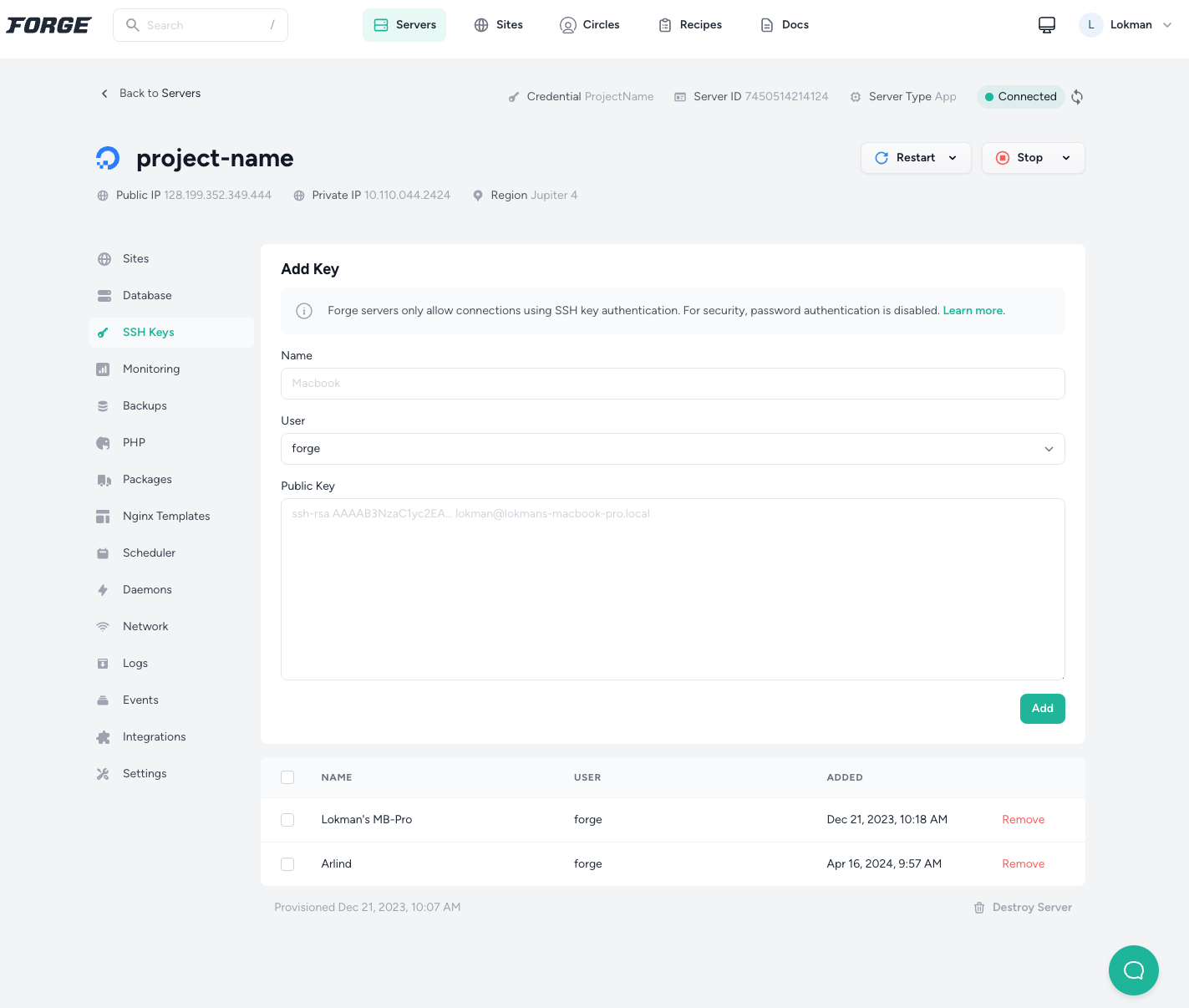
With the SSH key ready, you can run this code from your terminal to log into your server. This also allows you to connect to the database hosted on your server.
ssh forge@<your_server_ip>
Connect TablePlus with the production database
To access your Forge-created database in TablePlus, navigate to your server in the Forge app and click on the Database tab in the sidebar. Copy the provided Database Connection URL and open it in a new tab.
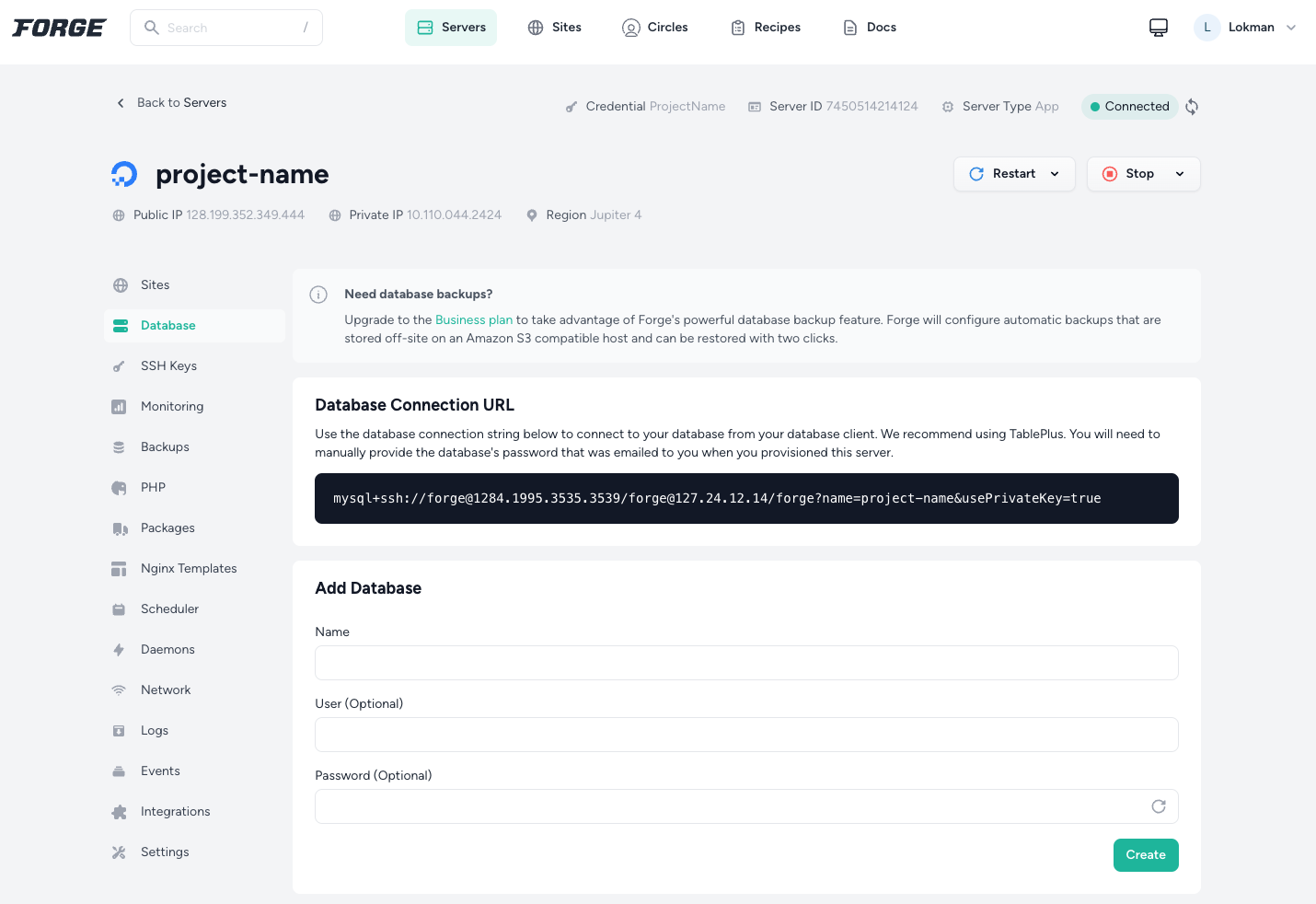
You will get a prompt to open TablePlus. Click Open TablePlus.
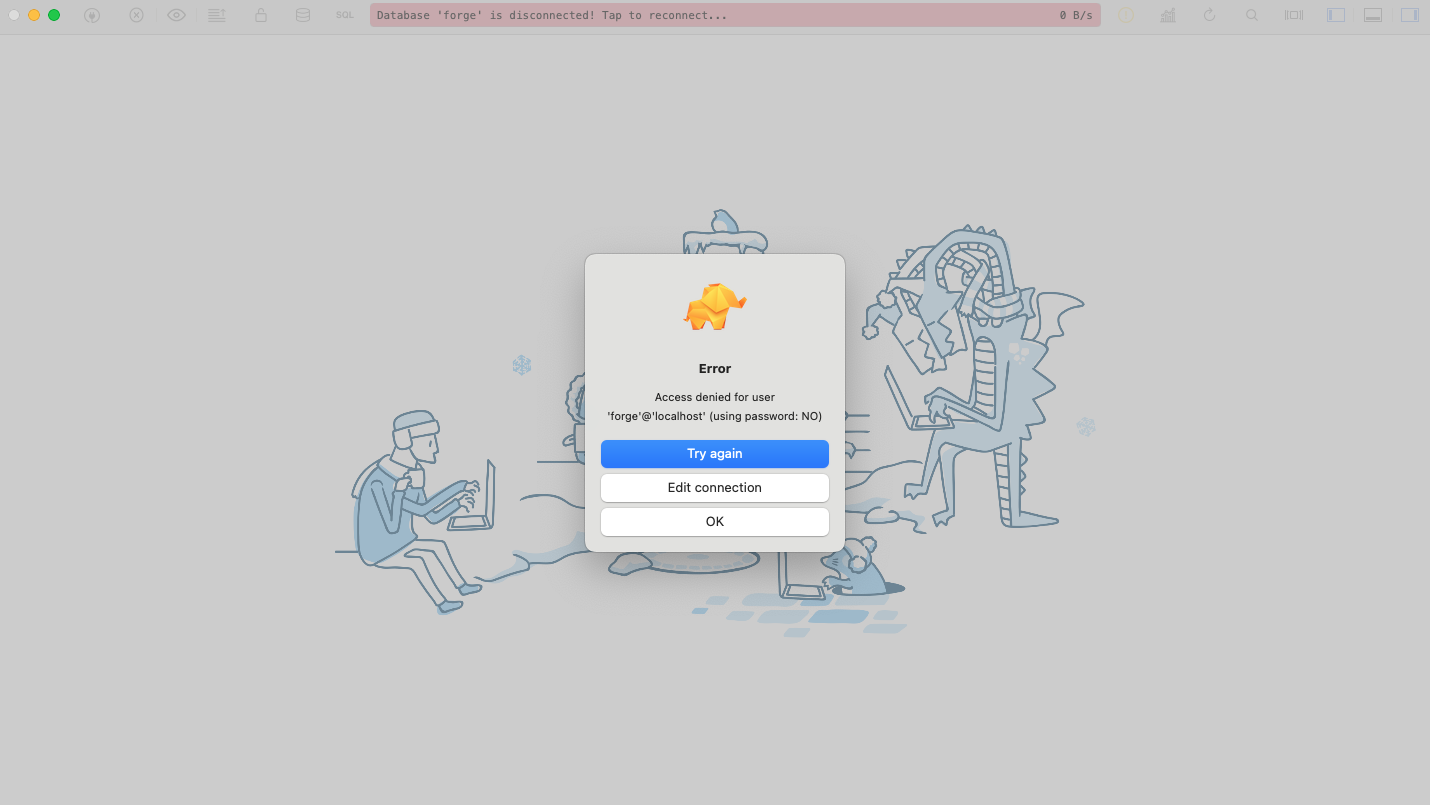
The connection is denied because we haven’t entered the password. You need to retrieve the database password sent to you by Forge via email when you created your server. Enter your server password as you can see in the example below and proceed.

We now have everything ready to allow TablePlus to establish the database connection. Test the connection, ensure the credentials are correct, and save the settings.
Note: If the SSH key authentication fails, import your private key by clicking "Import a private key" at the bottom of the edit screen in TablePlus. Point TablePlus to your secret ~/.ssh/id_rsa file to resolve the issue.
Conclusion
Once set up, you can now access and manage your Forge database using TablePlus on your local computer. This setup lets you easily view and edit your production database remotely.
Bring Your Ideas to Life 🚀
If you need help with a Laravel project let’s get in touch.
Lucky Media is proud to be recognized as a leading Laravel Development Agency
Technologies

Stay up-to-date
Be updated with all news, products and tips we share!